SimBuddy Get SimBuddy

Your design, over the live screen.

Choose a design, paste one or drop it on the panel, and SimBuddy draws it over the Simulator’s screen at the opacity you set. Difference turns matching pixels black, so changes stand out.

Free: 5 compare overlay sessions a day.Pro: no daily limit.

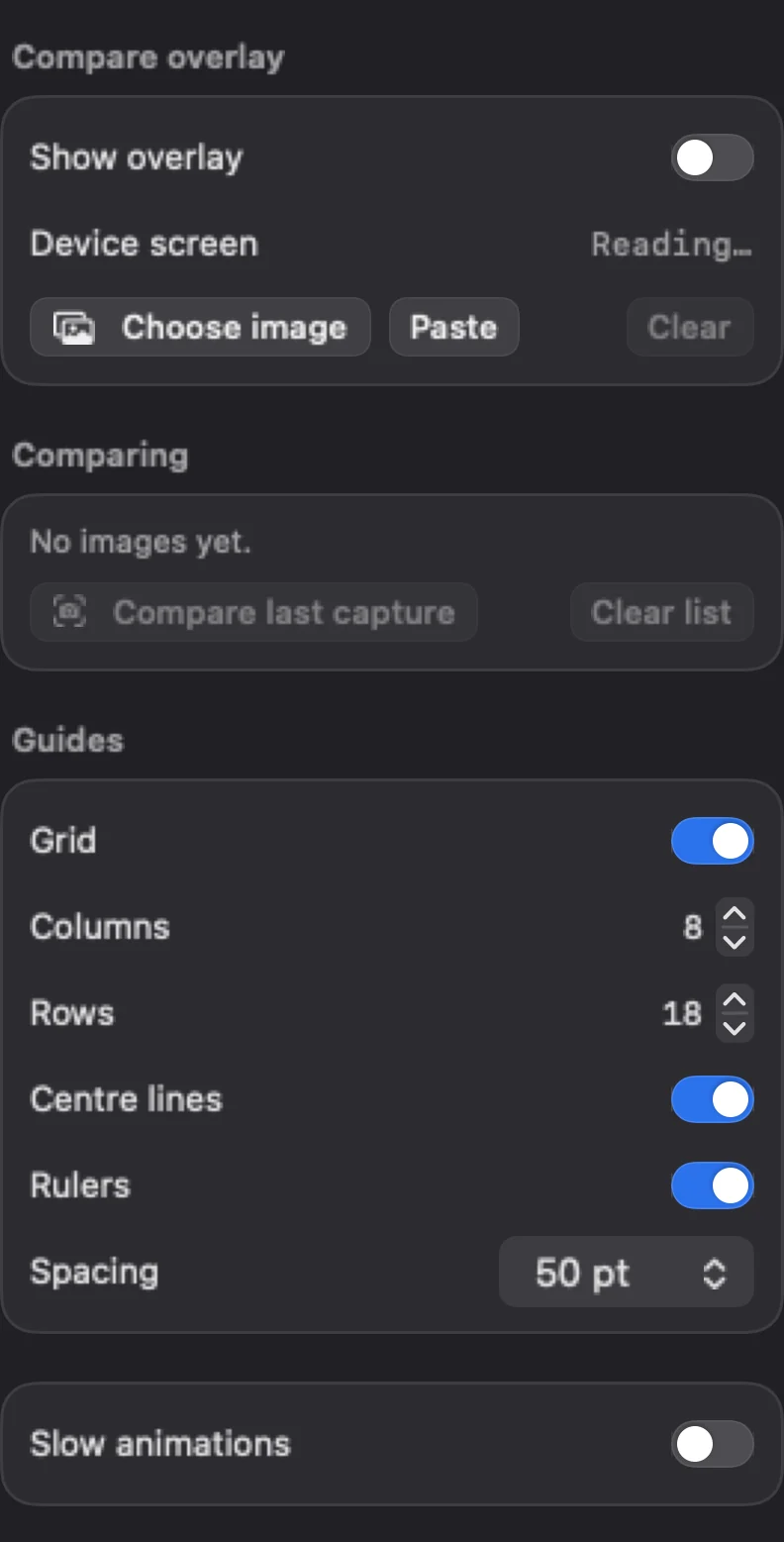
SimBuddy’s Compare workspace: Show overlay, Choose image and Paste, the compare list, and Grid with 8 columns and 18 rows, Centre lines and Rulers every 50 pt
The Compare workspace.

Lined up in device points.

Grid lays columns and rows across the device screen. Centre lines mark its horizontal and vertical centre. Rulers tick along all four edges, labelled in device points, every 25, 50 or 100.

Compare last capture puts your latest screenshot over the screen, to check a change against the build before it.

  • Overlay or Difference blend
  • Top, centre or bottom, for a design of another shape
  • Slow animations: every animation on the device ten times slower, to study it frame by frame

Or by the pixel, from a script.

simbuddy compare checks the device’s screen against a picture and says how much differs and where, in device points. A framed capture from SimBuddy is compared on its screen alone, with exactly the pixels its frame paints over left out.

  • --mask leaves out an area, such as the clock
  • --diff writes a picture with the differences in red

A check your agent can run.

The overlay is for you to look at. The compare command is for an agent or a test, and answers in numbers. The App Store copy reads pictures from Downloads.

$ simbuddy compare overlay show ~/Downloads/design.png --opacity 0.5 --blend difference

The design over the device, in Difference.

$ simbuddy compare ~/Downloads/before.png --diff ~/Downloads/diff.png

How much differs, and where.

$ simbuddy compare ~/Downloads/before.png --mask 0,0,402,54

The same, without the status bar.