SimBuddy Get SimBuddy

See what VoiceOver reads.

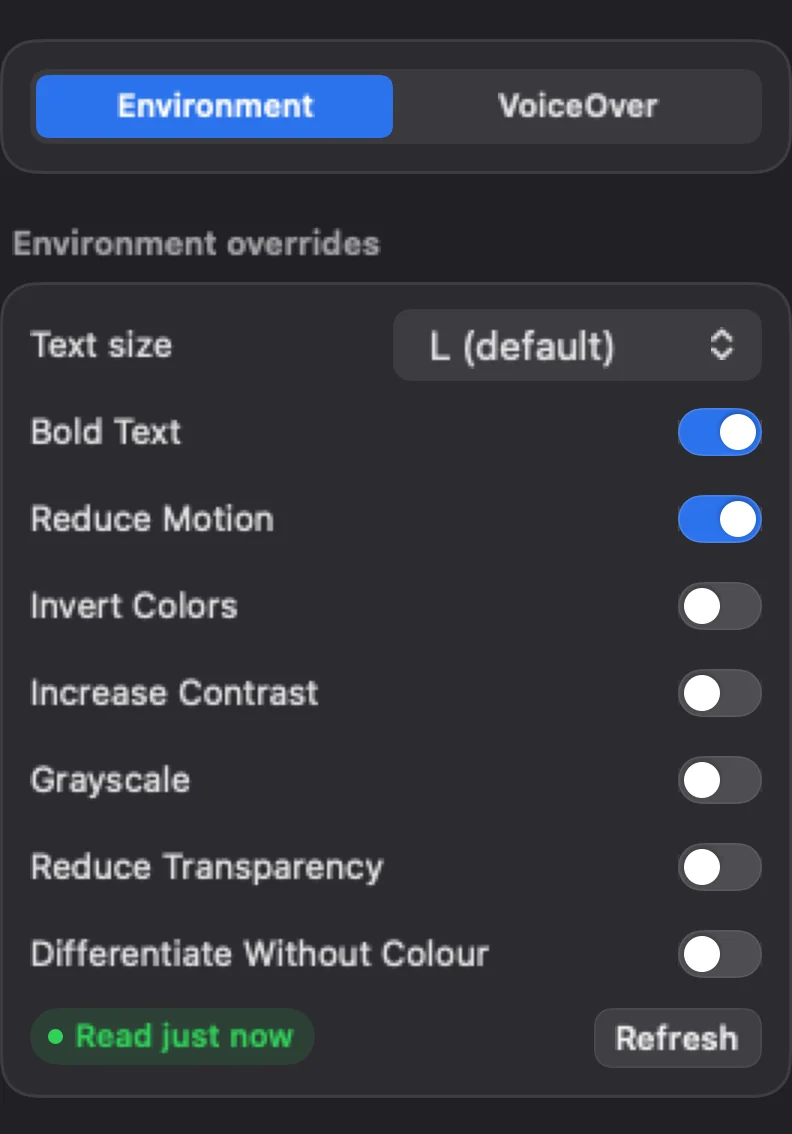
The VoiceOver Navigator walks the app’s elements in VoiceOver order and numbers them on the Simulator’s screen. Environment sets the text size, Bold Text, Reduce Motion, Increase Contrast and the other display settings on the device.

Free: the whole workspace, with no limit.

SimBuddy’s Accessibility workspace on its Environment tab: Text size, Bold Text and Reduce Motion on, Invert Colors, Increase Contrast, Grayscale, Reduce Transparency and Differentiate Without Colour off, read just now
Environment, read from the device.

Numbered in reading order.

Overlay draws each element’s number on the Simulator’s screen, in the order VoiceOver reads them. Names on overlay adds each name beside its number.

Step through them with the Navigator, by every element or by headings, buttons, links, images, text fields or controls, and Activate taps the one you are on.

  • Search filters the list by name or by role
  • The numbers stay the same while you filter
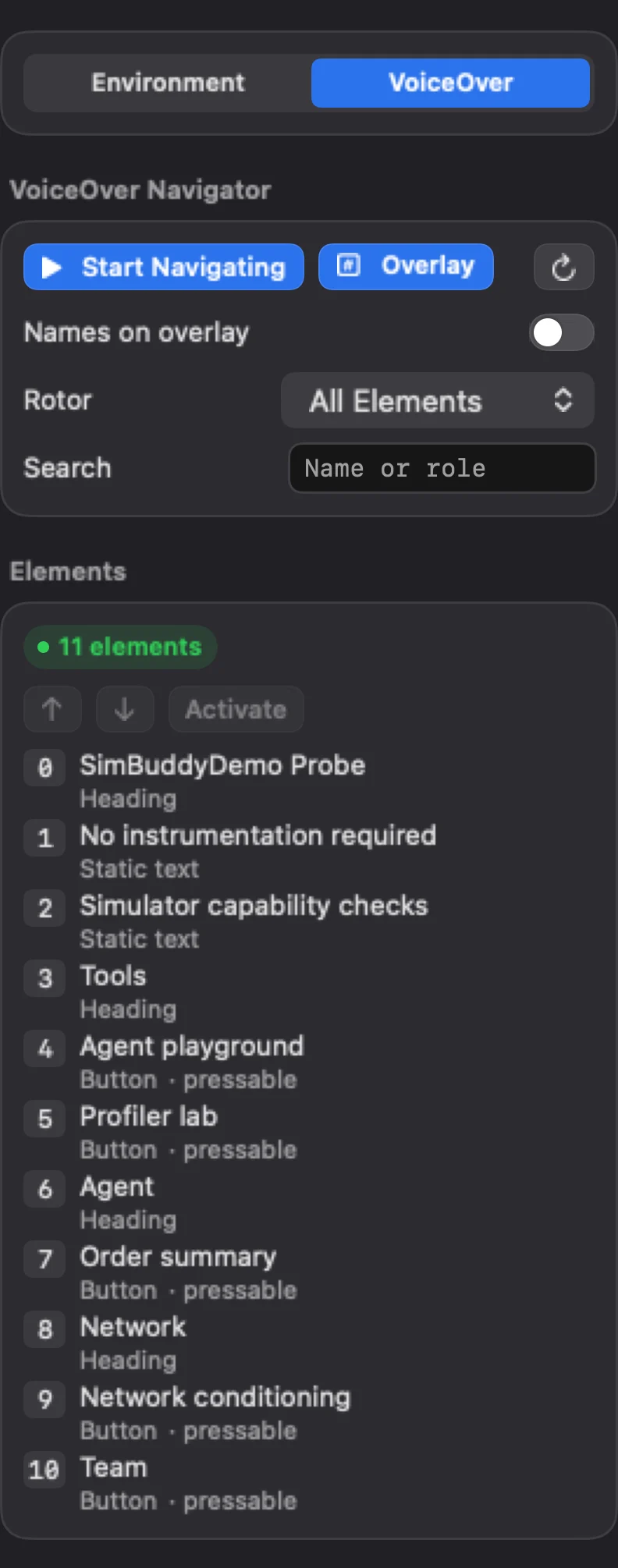
The VoiceOver tab with Overlay on: SimBuddyDemo’s first screen as eleven elements, 0 to 10, each with its role
SimBuddyDemo’s first screen, in VoiceOver order.

Problems found for you.

simbuddy ui audit lists missing labels, small targets, duplicate labels, code-like labels, and clipped or overlapping text, and checks again at each Dynamic Type size you name.

  • Each finding names the element and its rule
  • The device’s text size is put back afterwards

The settings, from a script.

Every switch in Environment, the overlay and the Navigator have commands.

$ simbuddy accessibility bold-text on

Bold Text on the device.

$ simbuddy accessibility overlay on --names on

The numbers, with each element’s name.

$ simbuddy accessibility navigate next --rotor buttons

The Navigator, to the next button.

$ simbuddy ui audit --text-size accessibility-large

The audit, again at an accessibility size.