Who we are
SimBuddy is a Mac app that works beside the iOS Simulator. It is made and published by Md Rafat Touqir, Schmohlstr. 4, 13086 Berlin, Germany (“we”, “us”), who is responsible for the information described here. This policy covers the SimBuddy app for macOS, its simbuddy command and this website.
Questions about privacy go to privacy@simbuddy.dev.
The short version
- SimBuddy has no account and no advertising, and it doesn’t track you across other companies’ apps or websites.
- Your Simulator, your captures, your network history and your agent sessions stay on your Mac. We never receive them.
- To know whether you have SimBuddy Pro, the app checks with our billing service under an anonymous ID. Apple handles the payment.
- Crash reports and anonymous usage data are off until you turn them on in Settings › Privacy. Neither includes your name, your apps, your devices, your files or what you type.
- We don’t sell or share personal information.
On your Mac
SimBuddy keeps the following in your user account, and we can’t see any of it. Only freeze reports and feature counts can leave for us, inside the crash reports and usage data you turn on; the daily counts are also copied to your own iCloud.
- Settings. Preferences, shortcuts, window positions and setup progress, in macOS’s preferences.
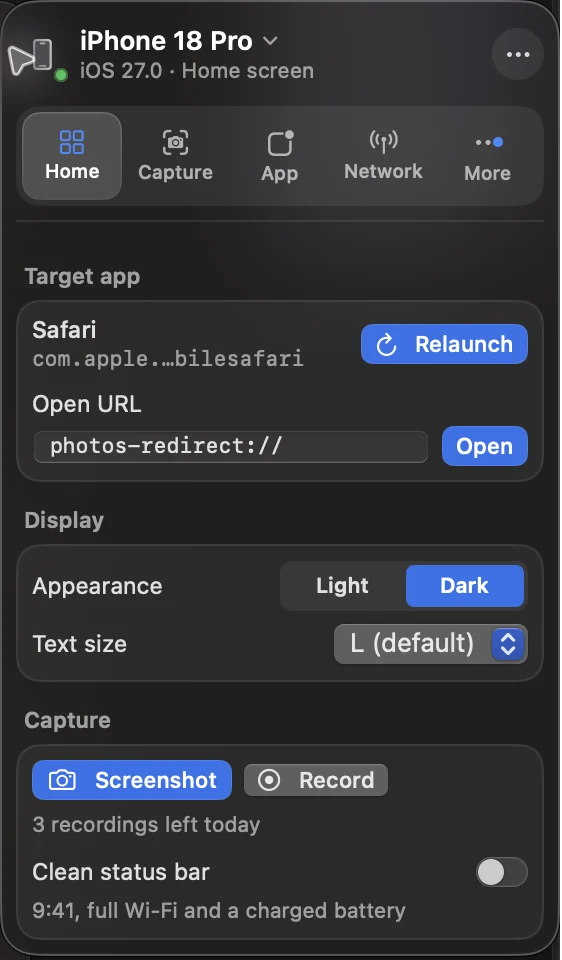
- Captures. Screenshots, recordings, GIFs, agent screenshots and handoffs, Device Matrix shot sets and Profiler traces, in the SimBuddy folder: Documents › SimBuddy, the folder you choose in Settings › Folders, or Downloads › SimBuddy until you let SimBuddy into either.
- App data copies. When you or your agent save a Simulator app’s data, SimBuddy copies its Documents, Library and tmp folders and its keychain items into the SimBuddy folder’s AppData, as an Xcode app data package.
- Working records. Your folder and Xcode choices, app actions, agent setup, network mocks and custom network profiles, in SimBuddy’s own app container.
- Network history. For apps you relaunch with the Network Monitor, each request’s method, address, status, timing and size. SimBuddy keeps no request or response bodies and no query values; of the headers it keeps only Cache-Control. To spot repeated calls, it also keeps a one-way fingerprint of each request’s address and body. A session you save or export holds what you captured, wherever you save it.
- Daily counts. How many Free-plan sessions you used today, when they started and when the agent trial began, in your keychain, with a copy in your iCloud so that losing one copy doesn’t reset them and your other Macs share the same day. Apple keeps that copy in your iCloud account; we can’t read it.
- Live data. The Simulator’s screen, the accessibility elements SimBuddy reads and the camera feed for camera injection are handled in memory while you use them.
- Diagnostics reports. Settings › Privacy › Create Report… saves a report for support where you choose. It holds SimBuddy’s version and plan, your Mac and macOS, your privacy choices, recent freezes and the last hour of SimBuddy’s own log, with home folders, user names and tokens removed. SimBuddy never sends it; you decide whether to.
- Freeze reports. When SimBuddy freezes, it notes what it was doing and keeps the last 20. Settings › Privacy › Freeze reports › Show in Finder opens them.
Permissions
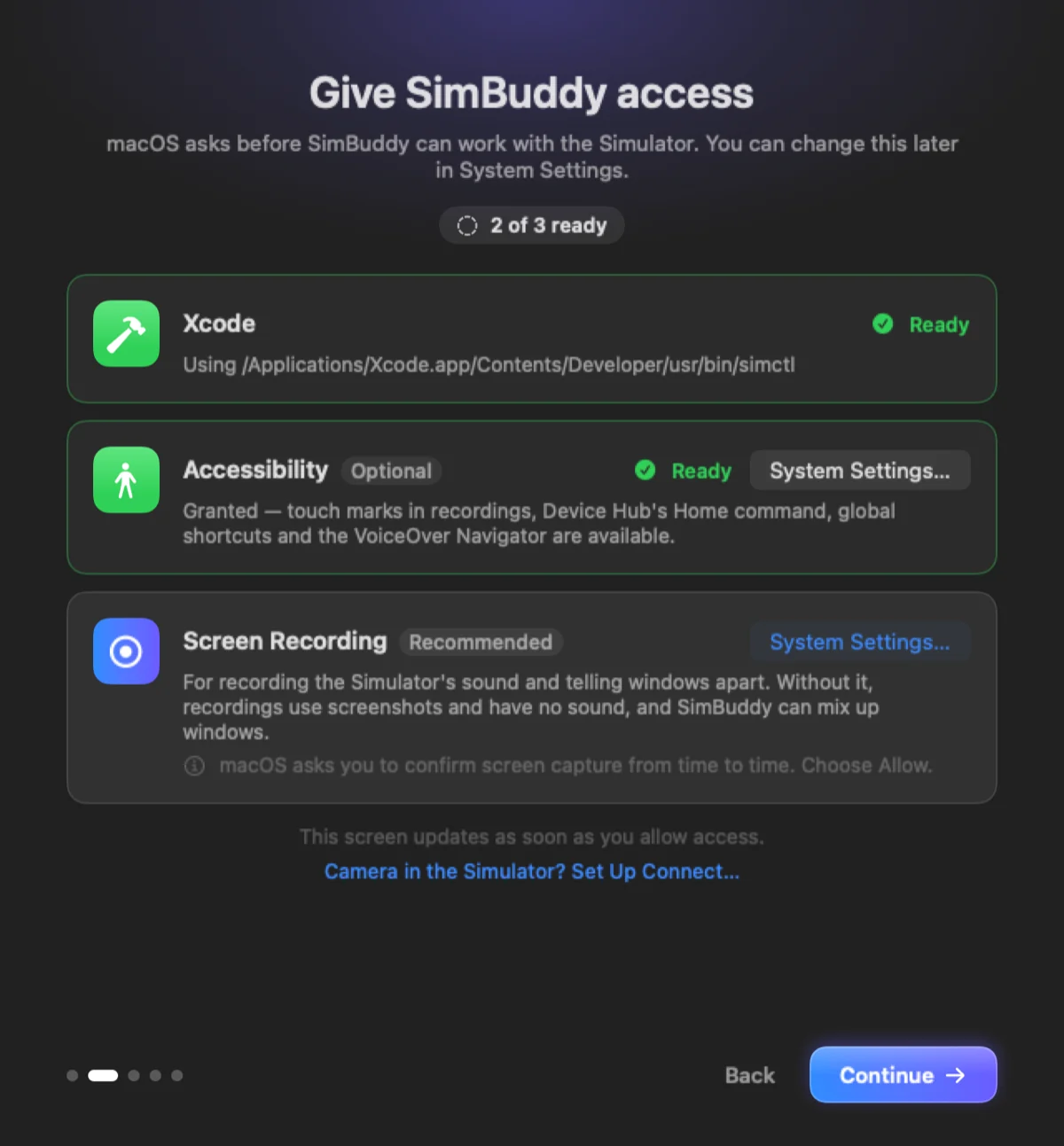
macOS asks before SimBuddy can use any of these. You can change your answer at any time in System Settings › Privacy & Security.
- Screen Recording lets SimBuddy mark your clicks in recordings, line its overlays up with the Simulator’s screen and tell Simulator windows apart. With Record audio on, a recording also takes the sound your Mac is playing, not only the Simulator’s. Nothing captured leaves your Mac.
- Accessibility is optional. It enables touch marks in recordings and SimBuddy’s global shortcuts.
- Your Developer folder is optional too. Choosing it in Settings › Folders lets SimBuddy read recent builds and Simulator files there, and write to it only when you ask it to delete an app’s keychain items or put back an app’s saved data.
- Camera streams a Mac camera into the Simulator app you select.
- Microphone adds your voice to a recording, only while one is being made with Record audio on and the microphone chosen as its sound.
Network tools
Network conditioning slows, drops or blocks connections only for the Simulator apps you choose, once you allow it when macOS asks. The rest of your Mac’s traffic is untouched, and conditioning records nothing.
The Network Monitor and network mocks work only inside the Simulator app you relaunch with the monitor, and what they see stays on this Mac.
Agents
Coding agents and SimBuddy’s web page see and drive the Simulator through a connection only this Mac can use, and only while SimBuddy is open.
When you connect an agent in Settings › Agents, SimBuddy adds itself to that agent’s settings. It supports Codex, Claude Code, Claude Desktop and Cursor. Teaching agents the simbuddy command also puts a skill in Codex’s and Claude Code’s skills folders and in Xcode’s agent folder.
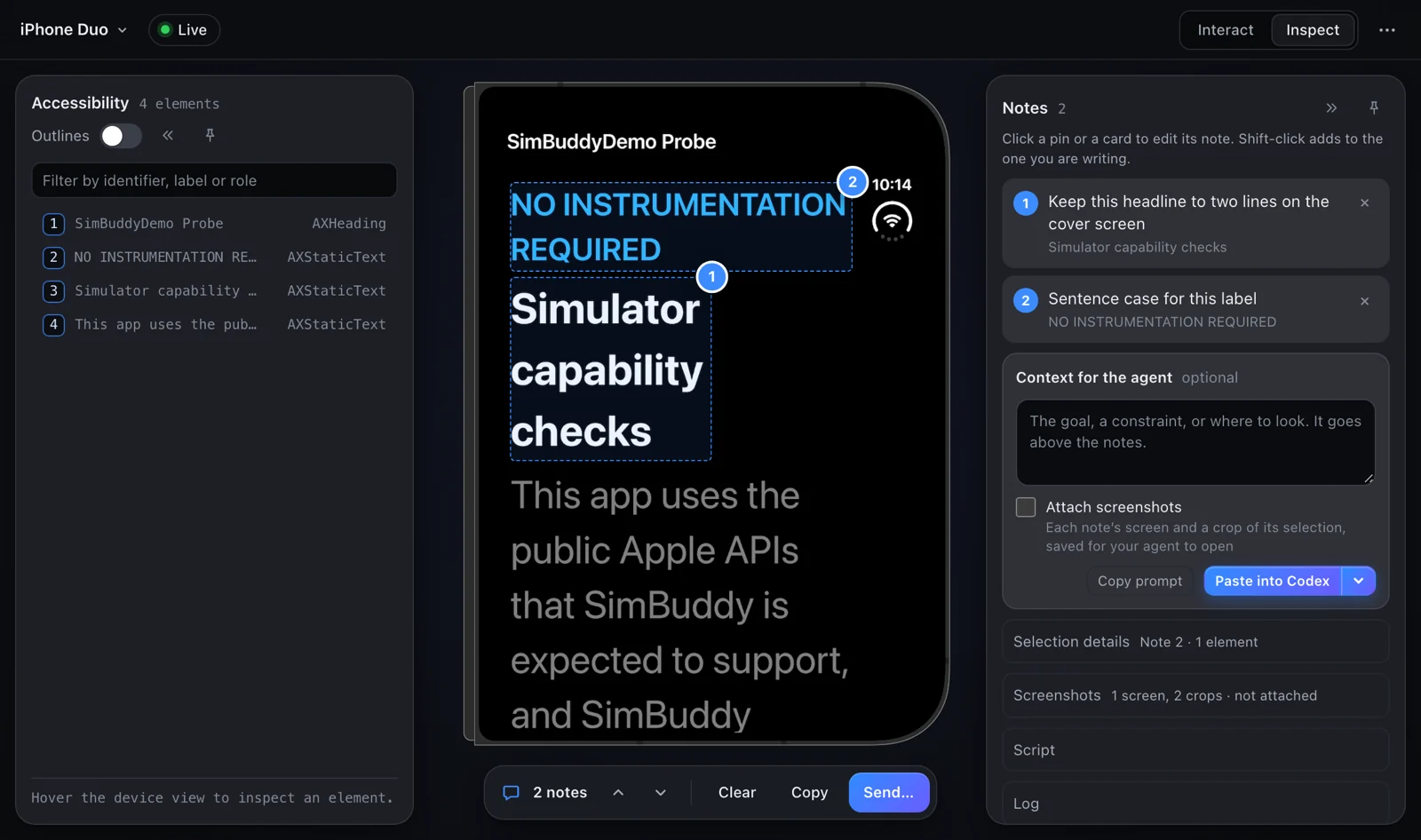
A connected agent can ask SimBuddy for the screen, its elements, your notes and screenshots, recordings, the app’s logs and crash reports, its saved data, and captured network requests with bodies of up to 64 KB. What it receives then goes to that agent and its provider under their terms and privacy policy. SimBuddy sends it nowhere else.
Camera
While a camera session runs, only the Simulator app you chose receives the camera, and only on this Mac. It stops when the session ends.
Purchases
SimBuddy Pro is an auto-renewing App Store subscription. Apple takes the payment; we never see your name, Apple ID, card or address. A billing service keeps track of subscriptions for us.
When SimBuddy starts, and when you buy or restore, it sends that service:
- an anonymous ID created on this Mac;
- your App Store purchases of SimBuddy;
- SimBuddy’s version, your macOS version and your Mac’s model;
- your preferred languages and App Store country;
- your IP address, as every internet connection does.
This is used only to make your subscription work, isn’t linked to your identity and isn’t used for tracking. The billing service is based in the United States and keeps this there, working for us under a data processing agreement that includes the EU’s Standard Contractual Clauses. If the service can’t be reached, SimBuddy uses its last saved answer.
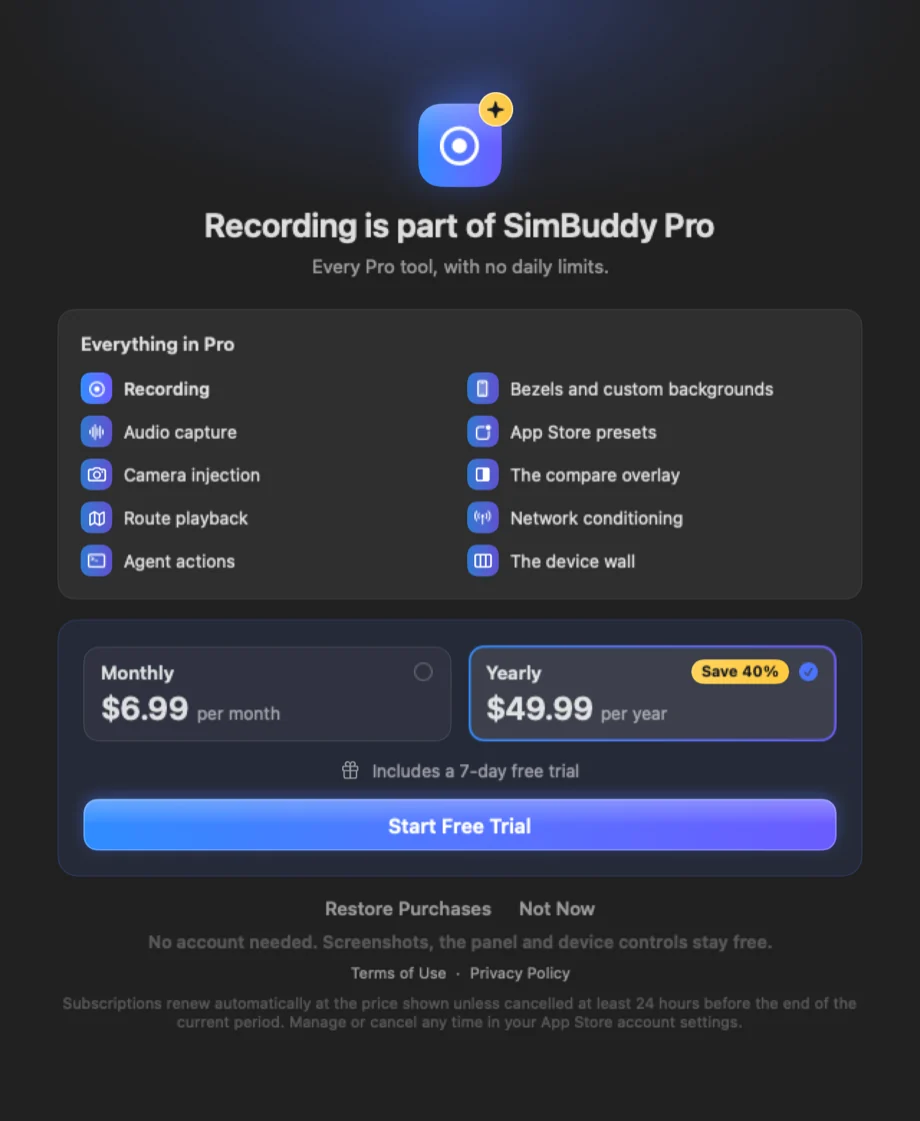
Subscription terms. SimBuddy Pro costs $6.99 a month or $49.99 a year in the US, and €6.99 or €39.99 in euro countries; the App Store shows your local price before you buy. The yearly plan starts with a 7-day free trial. Payment is charged to your Apple ID when you confirm the purchase, or when a trial ends. The subscription renews for the same period and price unless you turn off auto-renew at least 24 hours before the current period ends, and your Apple ID is charged within the 24 hours before it renews. Manage or cancel it in your Apple ID’s subscriptions in the App Store. Use of SimBuddy is governed by Apple’s standard licence agreement.
For the payment itself, read Apple’s privacy policy.
Crash reports
SimBuddy asks before it sends crash reports, during setup or once in a short dialog, and they stay off unless you turn on Send crash reports. You can turn them off at any time in SimBuddy’s Settings › Privacy.
While they’re on, crash reports go to the crash reporting service we use, which stores them in the EU. When SimBuddy crashes, freezes or shows you an error, a report holds:
- where in SimBuddy it happened, and the kind of problem, never its message;
- the SimBuddy screens and features you used just before;
- the versions of SimBuddy and macOS, your Mac’s model, processor and memory, how warm it was running, its language and time zone, when SimBuddy started, and whether SimBuddy came from the App Store;
- a random installation ID and a one-way hash of this Mac and app, neither linked to you;
- for each time you open SimBuddy, whether that session ended in a crash.
A report never contains your name, your user or computer name, your files, your apps, your devices or what you type, and SimBuddy removes home folders, user names and tokens before it leaves. We use crash reports to find and fix faults and to tell whether a new version is more stable. They are deleted after 30 days.
Separately, if you share crash data with app developers in System Settings › Privacy & Security › Analytics & Improvements, Apple may pass SimBuddy’s crash reports to us without your identity.
Usage data
Usage data is a separate switch, Share anonymous usage data, in the same places. It is also off until you turn it on.
While it’s on, usage data goes to the product analytics service we use, which stores it in the EU:
- which of SimBuddy’s screens and features you use, how often and for how long;
- how often each
simbuddycommand runs, from you or your agent, never what it was given; - whether you use Free or Pro, where an upgrade started, and how a purchase or restore ended;
- the versions of SimBuddy and macOS, your Mac’s model, its language and time zone, whether SimBuddy came from the App Store, and the country set in your Mac’s Language & Region settings;
- a random ID and a random session ID, neither linked to you.
Use is counted on your Mac and sent as totals from time to time. We use it to learn which features to improve, and it is deleted after one year. Turning usage data off stops it at once and deletes the random ID and any counts not yet sent.
For both: neither service keeps your IP address or uses it to find where you are. Both work for us under a data processing agreement. Your data is stored in the EU, and those agreements cover any access to it from outside the EU. On the App Store, SimBuddy lists Crash Data, Performance Data, Other Diagnostic Data, Product Interaction, Device ID and Purchase History, all as Data Not Linked to You and none used for tracking.
What we don’t do
- No account or sign-in.
- No advertising, no advertising identifiers and no tracking across other companies’ apps or websites.
- No crash reports or usage data unless you turn them on, and never your name, apps, devices, files or what you type when you do.
- No analytics, cookies or trackers on this website.
- No selling or sharing of personal information.
Keeping and deleting
To stop sending crash reports or usage data, turn them off in SimBuddy’s Settings › Privacy. Turning usage data off also deletes its random ID and anything not yet sent.
Information on your Mac stays until you delete it. To remove all of it:
- If you set up SimBuddy Runtime, choose Remove in its window (the menu bar menu’s Setup › Set Up SimBuddy Runtime…) to take its block out of Xcode’s LLDB settings.
- Run
simbuddy skill remove, and remove thesimbuddyentry from your agents, for example withcodex mcp remove simbuddyorclaude mcp remove simbuddy. - Quit SimBuddy and move it to the Trash.
- Delete
~/Library/Containers/dev.simbuddy.SimBuddyand SimBuddy’s folder in~/Library/Group Containers, which hold its settings and working records. - Delete the SimBuddy folder in Documents or Downloads if you don’t want your captures, app data copies and traces.
- Remove the network extension in System Settings › General › Login Items & Extensions.
- Delete the
dev.simbuddy.SimBuddy.allowancesitem in Keychain Access. The copy in your iCloud stays there; it holds only today’s counts and their times, and when the agent trial began.
Deleting SimBuddy doesn’t cancel a subscription. Manage or cancel it in the App Store, under your account’s subscriptions.
Our billing service keeps purchase records for as long as the subscription needs them and the law requires. Because the ID is anonymous, we can’t tell which records are yours. If you send us your App Store order ID from Apple’s receipt email, we’ll have the matching records deleted.
Crash reports are deleted after 30 days, and usage data after one year. Both are filed under random IDs that aren’t linked to you, so we can’t pick out yours on request; they are deleted on that schedule.
Your rights
Depending on where you live, including the European Economic Area, the United Kingdom, Switzerland and California, you may have the right to access, correct, delete or move personal information about you, to object to or restrict how it is used, and to complain to your data protection authority.
SimBuddy sends us nothing we can link to you, so the steps above cover most requests. For anything else, write to us and we’ll answer within 30 days. Where the GDPR applies, crash reports and usage data rest on your consent (Article 6(1)(a)), which you can withdraw at any time in Settings › Privacy without affecting what was sent before. The subscription check is needed to provide the subscription you bought (Article 6(1)(b)) and serves our legitimate interest in preventing misuse (Article 6(1)(f)). Our supervisory authority is the Berlin Commissioner for Data Protection and Freedom of Information.
Children
SimBuddy is a tool for software developers and isn’t directed to children. We don’t knowingly collect information from anyone under 16.
Security
Agents and SimBuddy’s web page can reach SimBuddy only from this Mac, and only while it’s open. Everything that leaves your Mac travels encrypted, and crash reports and usage data only ever go to servers in the EU. If you find a security problem, please write to us.
This website
This website sets no cookies and uses no analytics, trackers, web fonts or third-party scripts. The contact form on the support page writes an email in your own mail app; the website itself sends nothing. The service that hosts the site may keep standard request logs, such as IP address, time and page, for security.
Email. When you write to us, including a diagnostics report you attach, we use your address and message only to answer you, because you asked us to (Article 6(1)(b) GDPR), and delete them within a year of the conversation ending. When you ask to hear about the launch, we keep your address only to send that one email and delete it once it is sent (Article 6(1)(a)). Our email provider stores these messages for us.
Changes
When this policy changes, we’ll update the date at the top of this page. If a change affects what leaves your Mac, we’ll also say so in SimBuddy’s release notes, and if we change what crash reports or usage data contain, SimBuddy asks you again before sending them.
Contact
Write to privacy@simbuddy.dev. For help with the app itself, see Support.
